
Bit library
Bits → Bits … opens the library with over 170 common bits plus your own. In the cut popup or Properties, clicking the bit field opens the same library to pick from.
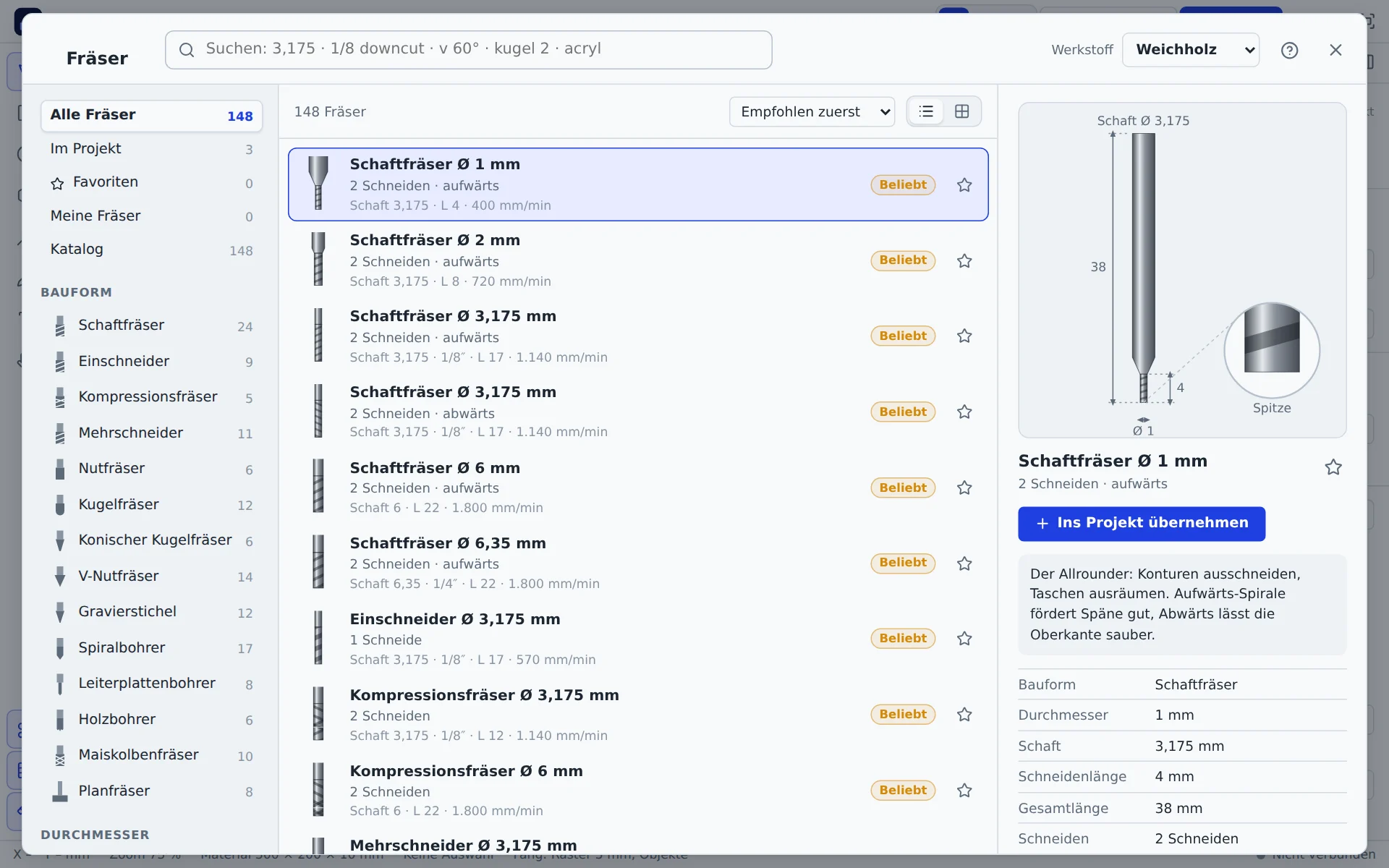
The search understands sizes and terms: 3.175, 1/8 downcut, v 60°, ball 2, 2 flutes, acrylic. If there is no exact match, it shows similar sizes. On the left you filter by source (in project, favourites, my bits, catalogue), type, diameter, shank and flutes.
The detail view draws the bit to scale, checks whether the shank fits your machine's collet and lists cutting data per material.
| Type | Use |
|---|---|
| End mill | Contours, pockets, cut-outs; upcut for chip clearance, downcut for clean top edges, compression for both |
| Single flute | Acrylic and aluminium |
| V-bit | Engraving, lettering, chamfers |
| Ball nose | Curves, reliefs |
| Drill | Holes in one plunge |
Your own bits
Own bit creates a bit of your own: type, diameter, flute length, shank, flutes and, for V-bits, the angle. Rules of thumb pre-fills cutting data based on the diameter. Your bits are stored in your account.
Custom profile bits
Bits → Create custom profile bit … opens a new bit of type Custom profile bit: a bit with a profile you draw, for edges and mouldings. Pick a preset (round-over, cove, chamfer, core box, ogee, rebate) and set the profile size and tip radius. Then drag the profile points with the mouse or a finger; clicking a line adds a point, the arrow keys move the selected point by 0.1 mm (1 mm with Shift), Delete removes it. Under Points as numbers you can type exact values.
The drawing shows the right half of the cutting edge, with the tip at the bottom. Height may only rise from point to point. The largest radius gives the diameter: the widest point runs on the contour line. The simulation, 3D view and bit picture show the real profile. Profile bits cut contours, not areas: a pocket is cut as an inside contour, and the app warns when the cut depth is greater than the profile is tall.
Importing bits
Import in the bit library brings bits from other programs into your account as your own bits. Drop the file into the window or choose it:
| File | Source |
|---|---|
.json, .tools | Fusion tool library (export), with cutting data per preset |
.vtdb | Tool database from VCarve, Aspire or Cut2D, with cutting data per material |
.csv, .tsv, .txt | Spreadsheets from Carbide Create, Excel or your own lists; columns are recognised by their heading |
The preview shows every bit with type, diameter, flutes and tool number. Bits with the same name and diameter that you already have are unticked. Inch sizes are converted to mm; notes such as Shank estimated or Type guessed show what to check after importing. Cutting data from the file applies to its material; values without a recognisable material, and bits without any values, get rule-of-thumb values for the material selected at the top. Holders, probes and thread mills are skipped.
Under Previous imports, Remove import removes all bits of one import together with their values.
Cutting data
Bits → Cutting data … or the Cutting data button in the cut settings shows a cross-section with all passes for each bit in the drawing. The values belong to the bit in the project and apply to every shape that uses it.
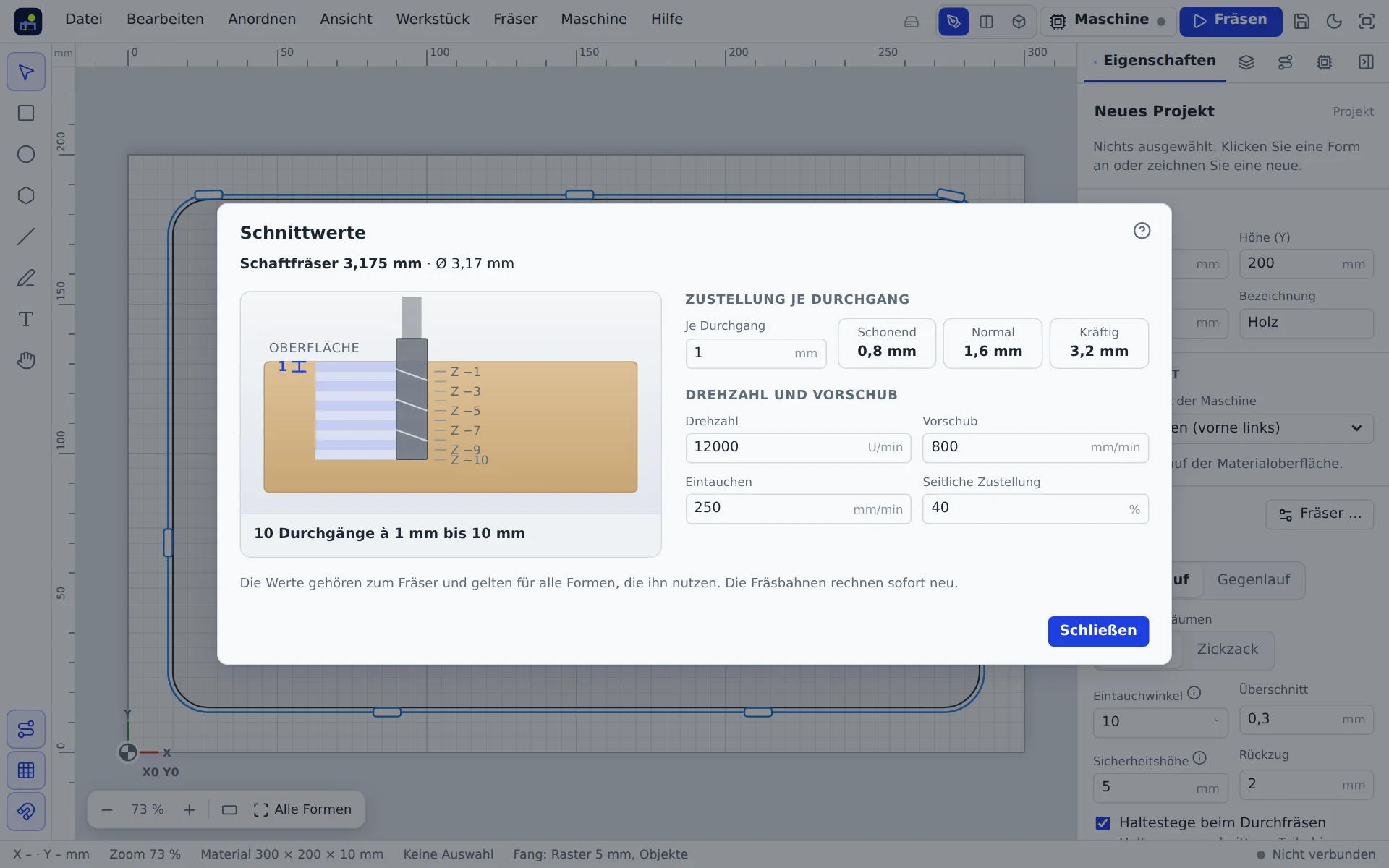
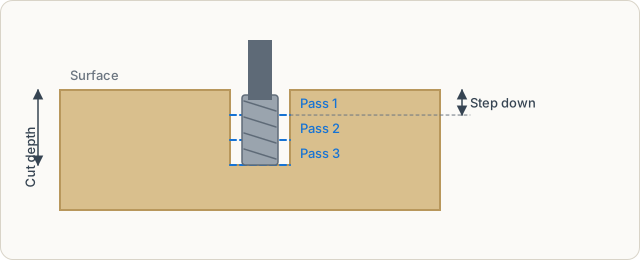
Step down per pass
How deep the bit goes in each pass. The app splits the cut depth into equal passes. Suggestions by diameter:
| Suggestion | Step down | When |
|---|---|---|
| Gentle | ¼ × diameter | small machines, hard materials, fine bits |
| Normal | ½ × diameter | wood and plastic on sturdy hobby machines |
| Strong | 1 × diameter | soft material, rigid machine |
If the step down is deeper than the flutes, the app warns you: the shank would rub.
Spindle speed
Revolutions of the spindle per minute. The app converts the recommendation to your machine's maximum speed so each flute removes the same amount. For spindles without speed control you set the speed on the dial; the app reminds you before the start.
Feed rate
How fast the bit moves sideways through the material, in mm/min. Too slow heats bit and material (burn marks, melted plastic), too fast overloads it. Below the field you see the chip load per flute. For small bits it should be about 1 % of the diameter.
Plunge rate
Speed going down into the material, usually a third to half of the feed rate. With a plunge angle the bit ramps in (Plunge angle).
Stepover
Distance between passes when clearing pockets, as a percentage of the diameter. 40 % is a good value.
Guides
Bits → Guides … opens the CNC guides in a window of their own, even without internet:
- Feeds and speeds: starting values for ten materials with a reference bit, chip load and the terms explained. For each material every suitable bit from the catalogue plus practical tips, for example for aluminium. If a machine with a maximum spindle speed is set up, the guides convert the values to it.
- Router bit types: every bit type with picture, use, materials and sizes, plus spiral direction and tool material.
Clicking a bit shows it in the bit library; Guides in the library leads back. The same content is on the web at mywerkzeug.de/cnc/en/guides/.
Learning cutting data
After every job from the drawing, the progress display asks briefly: Surface (good, frayed, burnt), Sound (smooth, loud, chatter) and Bit (fine, hot, broken). The good answers are preselected, one click on Rate is enough. From this the app learns your cutting data, separately for every machine, bit and material, and stores it in your account:
- All good: next time 4 % more feed, at most 30 % above the factory values. If you ran faster yourself with good results using the speed slider, that value applies. Depth per pass and spindle speed never go up on their own.
- Broken, chatter, loud, frayed: feed and depth per pass drop noticeably right away.
- Burnt or hot: the edge rubs instead of cutting, so lower spindle speed (without speed control more feed).
The display shows openly what changes. Use for this project gives the bit in the project the new values right away (can be undone). In the bit library, learned values carry the label learned; the box below compares them with the factory values. There you switch between Your values and Factory values or reset everything. The demo machine does not learn.
Fit comb
Joints bind or wobble when sheet, bit and machine don't deliver exactly the nominal size. The fit comb measures this once per material, thickness and bit: Bits → Fit comb …
- Cut the comb: Pick material, sheet thickness and bit, plus 5 slots 0.1 mm apart or 9 slots 0.05 mm apart. The slots range from 0.2 mm narrower to 0.2 mm wider than the thickness. Open comb as project creates a small project that you cut as usual. The chamfer at the top left marks the narrowest side; the notch at the bottom sits under slot “0”.
- Pick the slot that fits: Push an offcut of the same sheet into the slots. In the same window, pick the slot it slides into with light pressure and then holds on its own, and tap Save fit.
The fit is stored in your account. It is used as the clearance in templates with joints (the “Joint clearance” slider) and in the furniture generator for box and shelf, as soon as material and thickness match. A note under the slider says where the value comes from; you can change it at any time. If the comb found a slot narrower than the thickness, the sheet is thinner than stated: the app then sets the smallest clearance and suggests checking the thickness.