
Place text
Choose the text tool (T) and click on the canvas. A text appears and the text field is ready; just start typing. Enter starts a new line, Esc ends the input. Double-click a text to edit it again.
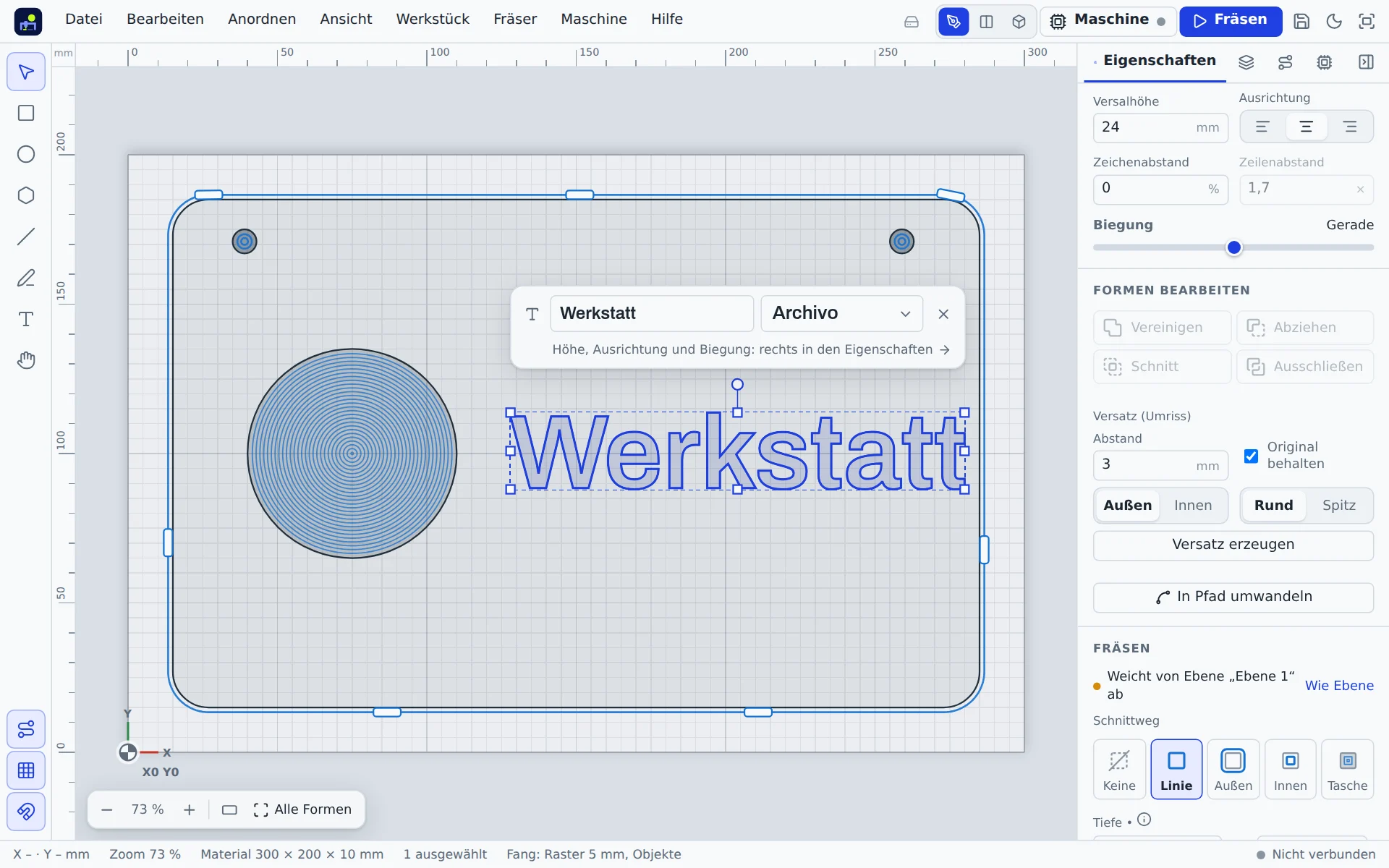
Text bar
When exactly one text is selected, a slim bar with a text field and font picker floats above it. More options are on the right under Properties. Switch the bar off under View → Text bar at selection.
Font and size
- Font: the list shows your text in every font, grouped into favourites, clean, serif, script, handwriting, stencil, single-line and your own. 18 free fonts and five single-line engraving fonts are included; Manage fonts shows them all together.
- Cap height: height of a capital “H” in mm. This is how signs are planned: 20 mm cap height means 20 mm tall capitals.
- Alignment: left, centre or right.
- Letter spacing and line spacing.
Bend
Bend places the text on an arc, from −360° to 360°. Positive values curve upwards. Straight resets it.
Your own fonts
In the font list, Add your own font … adds TTF, OTF or WOFF files. They are stored only in this device's browser. The outlines are saved in the project, so the text looks the same everywhere; it can only be edited where the font is available. WOFF2 is not supported.
Manage fonts
Draw › Lettering › Manage fonts … (also at the bottom of every font list, in the text bar and via Ctrl+K) lists all built-in and your own fonts with a sample text you type yourself; without input it shows the selected text. Search finds fonts by name or style, and the filters show only Favourites, Sans serif, Serif, Script and handwriting, Engraving (stencil and single-line), Single-line, Bold or Your fonts.
- Star: marks a font as a favourite. Favourites appear at the top of the manager and as their own group at the top of every font list. They are saved with your account and apply on all devices.
- Use: a click selects the font, Use for selection (or double-click, Enter) applies it to all selected texts. If no text is selected, the next new text gets this font.
- Add your own font … and the bin next to your own fonts add fonts or remove them from this device.
Single-line engraving fonts
The Single-line (engraving) group holds five stroke fonts: Block, Block bold, Serif, Script and Gothic. Every letter is made of lines the bit follows once instead of clearing an area. That gives fine, fast engravings with a ball, engraving or V bit, also on metal, acrylic and leather, and suits stencils and labelling. Set the cut type to On the line; the bit then decides the stroke width. Umlauts, ß, ° and € are included. The shapes come from the Hershey fonts (free to use with credit to the authors, see below).
Source: The Hershey Fonts were created by Dr. A. V. Hershey at the U.S. National Bureau of Standards; the data format is by James Hurt (Cognition, Inc.).
Cutting
Text is a normal shape: engrave on the line, pocket for recessed letters or outside to cut letters out. Overlapping letters of a script font are merged into one clean area automatically. Convert to path turns it into plain outlines.
Variable text
Texts can contain placeholders such as {nr}, {datum} or {Name}, which are replaced when cutting by the running number, the date or a column of a list; after each job the row advances. More under Variable text.